Pawsome Resort Controls: Mouse, Keyboard & Tools Guide
A complete guide to Pawsome Resort controls, including movement, toolbar, interacting, tools, map, and scooter. Controls use mouse and keyboard.
Last verified: 2026-06-25
Pawsome Resort uses a mouse-and-keyboard control scheme, and the Steam store page lists full controller support. The bindings below are taken from community guides covering the current Early Access build. You can check or remap any key in the in-game settings menu under Controls or Key Bindings.
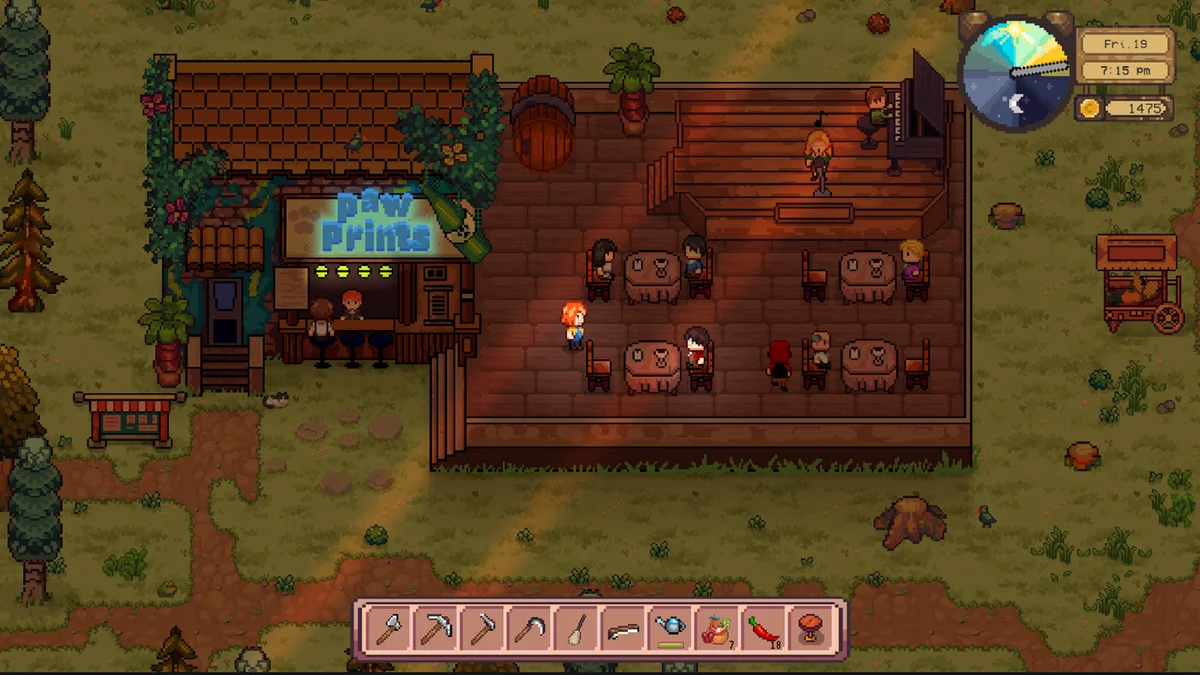
Movement
Move your character around Pebble Town and your resort with the keyboard:
- W / Up Arrow — move north
- A / Left Arrow — move west
- S / Down Arrow — move south
- D / Right Arrow — move east
- Shift — run
- Space — jump
Holding a direction key lets you walk. Hold Shift while moving to run, and press Space to jump over small obstacles or gaps.
The mouse is used to aim interactions, select items, and navigate menus. Click on objects to interact with them when you are close enough.
Toolbar / Hotbar
Your toolbar holds the tools and items you use most often. You can select a slot by:
- Number keys 1–8 — select the matching toolbar slot.
- Mouse scroll wheel — cycle through toolbar items.
- Clicking an item with the mouse.
Keep your most-used tools, such as the axe, hoe, watering can, and scythe, in the first few slots. This makes farming and gathering much faster.
Interacting
Most actions in Pawsome Resort happen by moving close to an object and pressing the interact key. The interact keys are:
- E — interact with NPCs, doors, animals, and objects.
- F — perform the context action shown on screen.
- Left Mouse Button — interact or use the selected tool.
To talk to a villager, walk up to them and press E. To open a door or enter a building, stand next to it and press the same key. If a prompt appears on screen, it shows the correct binding for your setup.
Tools
Pawsome Resort gives you several tools for farming, gathering, and cleaning. Below is how each one works.
Axe
The axe chops trees, logs, and wooden stumps. Equip it, stand next to a tree, and press the use key or left-click. Each swing deals damage until the tree falls and drops wood. Better axes chop faster; upgrade costs are shown at the workbench or upgrade station.
Pickaxe
The pickaxe breaks rocks and ore nodes. Equip it and strike rocks to collect stone and ore. Some rocks take multiple hits.
Scythe
The scythe cuts grass, weeds, and mature crops. It is useful for clearing overgrown farm tiles and harvesting large fields quickly. Be careful not to cut crops you want to keep until you confirm which plants the scythe affects.
Hoe
The hoe tills soil so you can plant seeds. Equip the hoe, stand on a grass or dirt tile, and use it to create a farm plot. You must till soil before planting seeds.
Watering Can
The watering can waters tilled farm plots. Crops need water to grow. Each use consumes one charge of water. Refill the watering can at a pond, well, or other water source. The refill location is shown when your can is empty.
Broom
The broom cleans dirt and debris inside habitats and guest areas. A clean habitat keeps animals happy. Use the broom daily in each habitat to prevent mess from building up.
Map and Scooter
Pebble Town and the surrounding areas are large enough that walking everywhere takes time. The game provides a map and a scooter for faster travel.
Map
Open the map to see your current location, points of interest, and discovered areas. The map key is:
- M — open the world map.
- Tab — cycle through menus, including the map.
The map shows discovered areas and any unlocked fast-travel points. Fast-travel availability depends on your story progress.
Scooter
The scooter lets you move across the map faster than walking. You receive it during the tutorial and it is parked next to your home. To use it:
- Walk up to the scooter.
- Press E to mount.
- Drive using the movement keys.
- Press E again to dismount.
Building and Decorating
When placing furniture, habitats, or decorations, use these keys:
- Q — rotate the selected item.
- R — remove the item you are currently placing.
These shortcuts make it faster to arrange your resort and keep habitats tidy.
Menu Controls
The following menu shortcuts are used in Pawsome Resort:
- Tab — open inventory.
- Tab — also opens the quest log and map through menu tabs.
- M — open map directly.
- Esc — pause or open settings.
- T — open chat (when applicable).
If a shortcut does not work, open the settings menu and check the Controls tab for the current bindings.
Accessibility and Settings
If the default controls feel uncomfortable, check the settings menu for options such as:
- Key remapping
- Mouse sensitivity
- Screen shake or camera options
- Text size or subtitle settings
The settings menu includes key remapping and common accessibility options.
Quick Control Reference
| Action | Key |
|---|---|
| Move | WASD / Arrow keys |
| Run | Shift |
| Jump | Space |
| Interact | E |
| Context action | F |
| Select toolbar slot | 1–8 / Scroll wheel |
| Open inventory / menus | Tab |
| Open map | M |
| Rotate placed item | Q |
| Remove placed item | R |
| Open chat | T |
| Pause / settings | Esc |
For more beginner guidance, see the Pawsome Resort Beginner's Guide. For tips on making money and staying efficient, check the Pawsome Resort Tips and Tricks page.